 Clash Verge

Windows
- x64 and ARM64 setup builds
- WebView2-inclusive builds are available when needed
Get the Clash Verge desktop client for your operating system and CPU architecture. After installation, import a Clash/Mihomo profile, choose a proxy group or node, then enable system proxy or TUN as needed.
“Match the installer to your operating system and CPU architecture.” — Release files and version notes are listed on GitHub Releases
Select the desktop platform you use, then match the build to your CPU architecture. The buttons below point to the current release files already linked on this page.
aarch64.dmgx64.dmg.deb packages.rpm packagesClash Verge Rev is a desktop client for Windows, macOS and Linux. Android and iOS are outside this project's current build targets.
Once the desktop client is installed, the normal workflow is to load a Clash profile, choose routing policies, and decide whether traffic should use system proxy or TUN.
Mihomo matches rules and sends traffic to DIRECT, proxy groups or other policies
Manage nodes, proxy groups and routing rules from the desktop interface
Import subscription URLs or local Clash/Mihomo configuration files
Switch the Mihomo routing mode without replacing your profile
Project documentation states that configuration and logs are stored on the local device
Measure response time to compare available nodes and proxy groups
Back up Clash Verge configuration and restore it after a reinstall or device change
View active connections together with current upload and download activity
The download is only the first step; Clash Verge needs a profile before it can route traffic.
Match Windows, macOS or Linux with the correct CPU architecture
Add a remote subscription URL or import a local Clash/Mihomo config file
Choose the policy or node defined by the active profile
Use system proxy for compatible apps or TUN for broader traffic coverage
Use a stable Release for routine use; AutoBuild artifacts track newer development commits and are better suited to testing.
| Comparison | Stable Release | AutoBuild |
|---|---|---|
| Update frequency | Versioned release | Tracks newer commits |
| Development changes | After release | Earlier |
| Stability target | Release build | Development build |
| Best suited to | Routine use | Testing recent changes |
Mihomo Stable/Alpha is a separate core channel inside the app; it is not the same thing as choosing a Clash Verge Stable Release or AutoBuild.
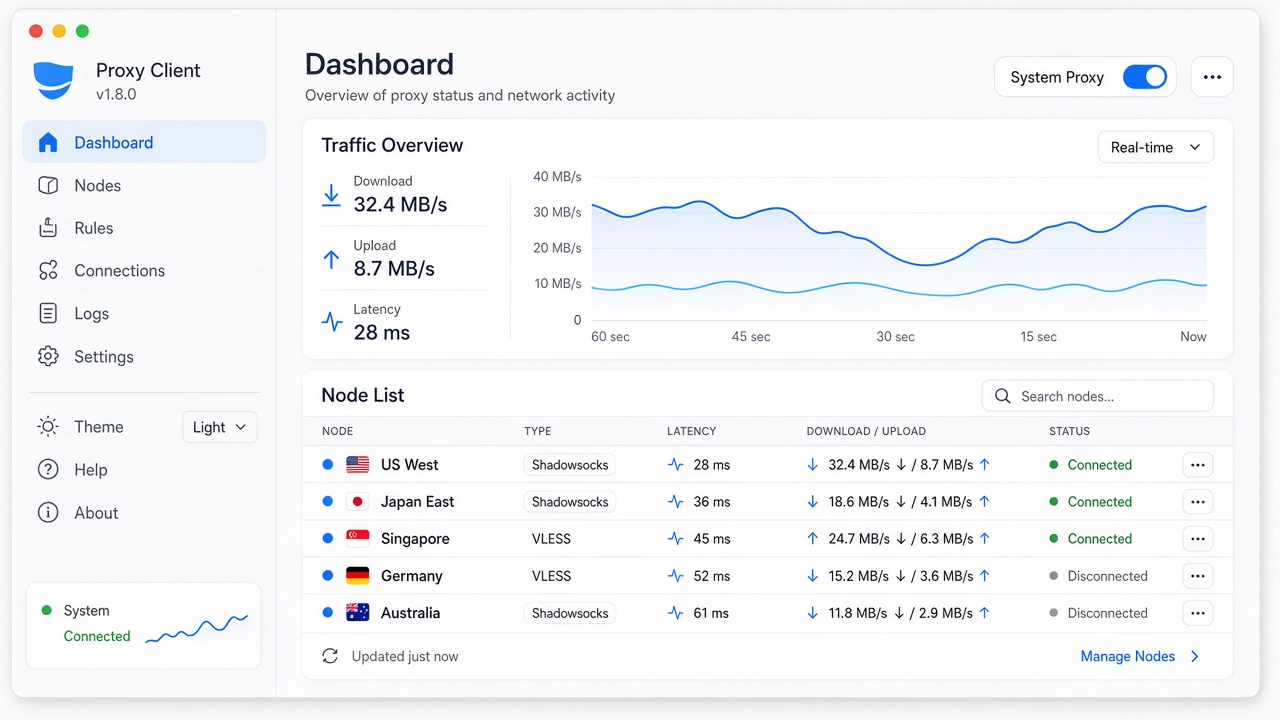
The desktop interface brings profiles, proxy groups, connections, rules and network controls into one application.
Check platform requirements, keep a backup of important configuration, and remember that the client does not include proxy servers.
Check the version, operating system, architecture and filename before installing a release asset.
TUN requires operating-system privileges because it creates a virtual adapter and changes routing.
Clash Verge does not provide proxy servers; bring your own subscription URL or local configuration.
Local configuration is normally retained across upgrades, but a backup is sensible before major version changes.
Use WebDAV when you want an additional configuration backup for reinstalling or moving devices.
Use the exact platform, version and error message when searching existing project issues.
Common questions about choosing builds, CPU architecture, desktop platforms, profiles, upgrades and TUN setup.
Start with GitHub Releases and match the release asset to your operating system and CPU architecture: x64 or ARM64 on Windows, Apple Silicon or Intel on macOS, and the appropriate DEB/RPM architecture on Linux.
Most Intel/AMD Windows PCs use x64, while Windows on ARM devices use ARM64. On macOS, Apple Silicon uses aarch64/ARM64 and Intel Macs use x64. Linux users should match both CPU architecture and package format.
No. Clash Verge Rev currently targets Windows, macOS and Linux desktops. Mobile clients belong to other projects and may support a different subset of Clash/Mihomo configuration features.
No. Clash Verge is the desktop client. Proxy servers, subscription URLs and network service plans come from third-party providers or infrastructure you manage yourself.
Local configuration is normally retained when updating the app, but backing up the application data or using WebDAV before a major version change gives you an easier recovery path.
Clash Verge uses Tauri and depends on WebView2 on Windows. If the app starts but the interface does not render, check WebView2 first; Releases also provide larger builds with WebView2 included for systems that need them.
TUN needs permission to create a virtual adapter and change routing. Check the service/permission state, conflicting network software and platform-specific requirements before troubleshooting the Clash profile itself.
The Releases page keeps previous version assets and release notes. Back up important local data first, then choose the package that matches your platform and architecture.
Choose the build for your desktop platform, install the client, then import a Clash/Mihomo profile to configure proxy groups, rules, system proxy or TUN.